

Concept invoice: important for clear communication about the customer price
At Zoofy, we believe that clear communication between you and the customer is important — especially when it comes to pricing. If a job involves additional work or material costs that increase the total price, it’s essential to agree on this in advance. With the concept invoice feature, you can easily communicate the customer price via a screenshot. This helps the customer better understand the final cost and prevents discussions afterwards. Below you’ll find the steps to do this via Zoofy.
Note: Never share your own fee. That’s an agreement between us and not between you and the customer!
Why is this important?
1. The customer can check the exact total price.
2. You avoid misunderstandings or confusion.
3. When the invoice is created, payment will be processed faster and more smoothly.
Transparent pricing and clear communication build trust.
In short: a small step that leads to happier customers — and less hassle!
How to create a concept invoice
1. Log in to your professional account on Zoofy, go to the confirmed job, and click ‘CREATE INVOICE’.

3. Select the expected number of hours for an hourly rate, or tick the checkbox for a fixed price and click "EXTRA COSTS".

4. Enter any material costs or additional work with a clear description.
Add a separate line for each cost item.
Save the extra costs as you expect to incur them.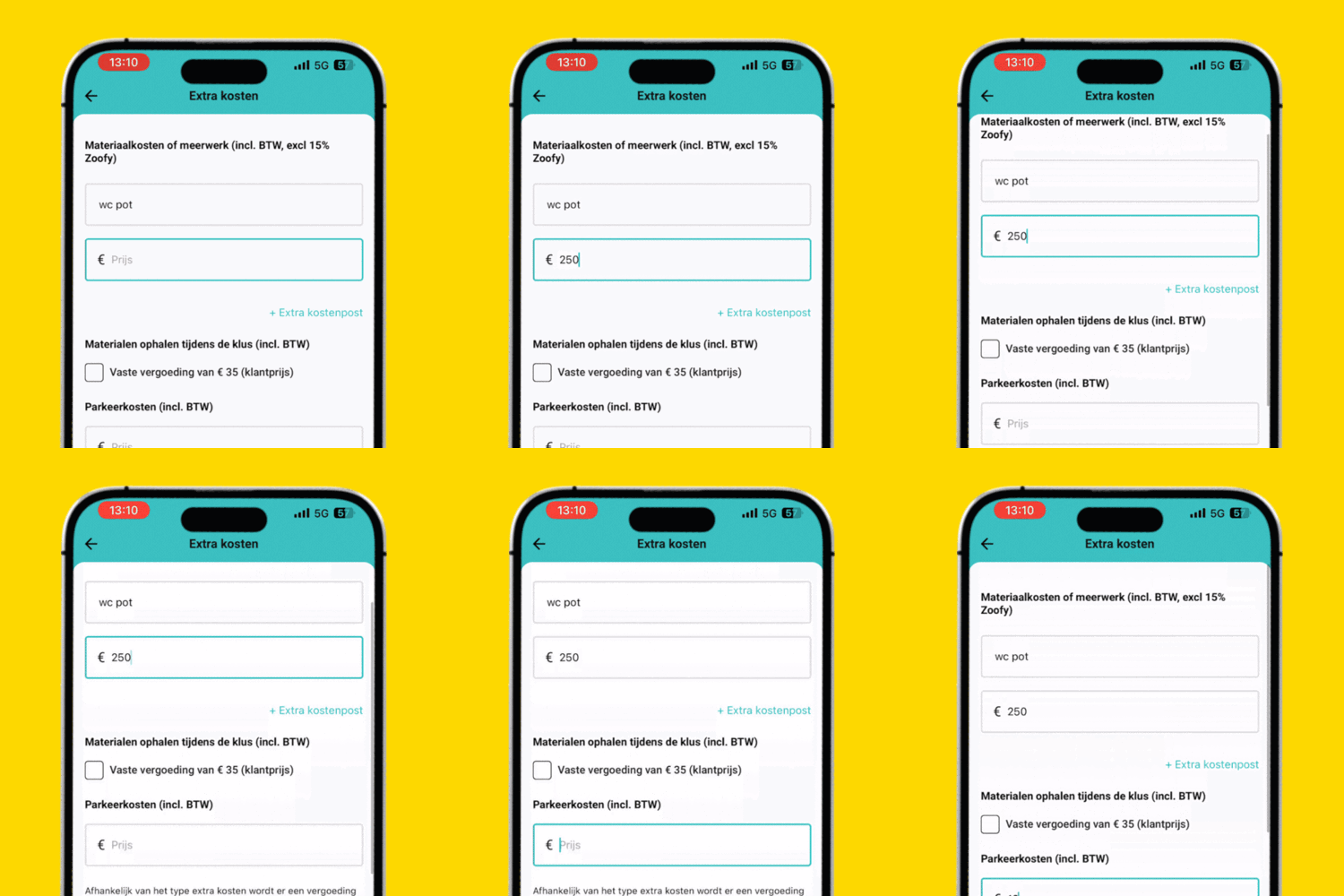
5. Click ‘PREPARE INVOICE’ to view and check the customer price.

6. Click ‘EDIT’ to adjust the price for the customer. A fair and competitive price increases your chances of getting the job.
⚠️ Note: Do NOT click ‘CREATE INVOICE’, as this will immediately send the invoice.
⚠️ Note: Prices that are too high will be reviewed by us. Too many cancellations due to overpricing may result in termination of our collaboration.
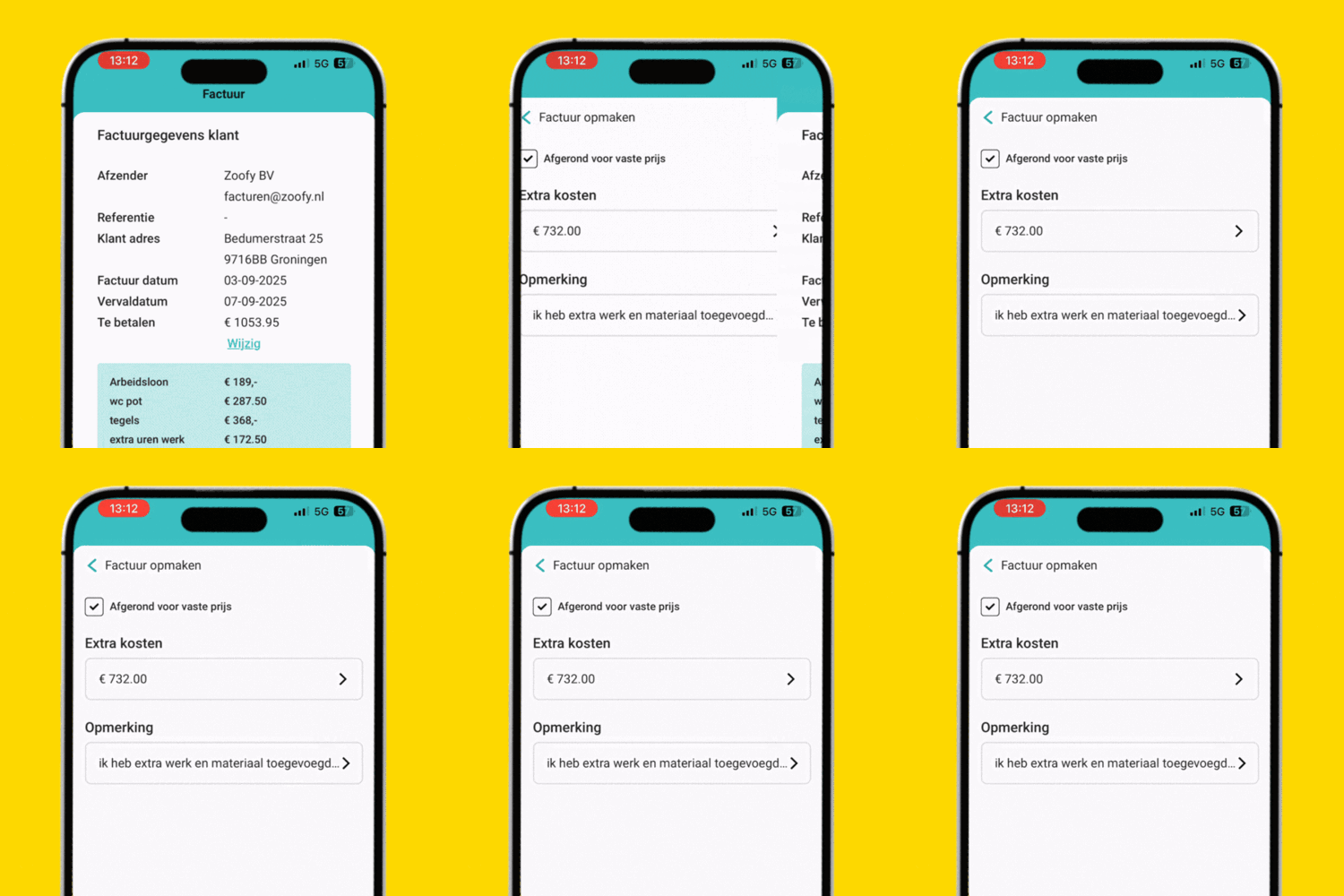
7. Take a "SCREENSHOT" to share the customer price with the customer via WhatsApp.
⚠️ NOTE: Do NOT click CREATE INVOICE, as this will send the invoice.
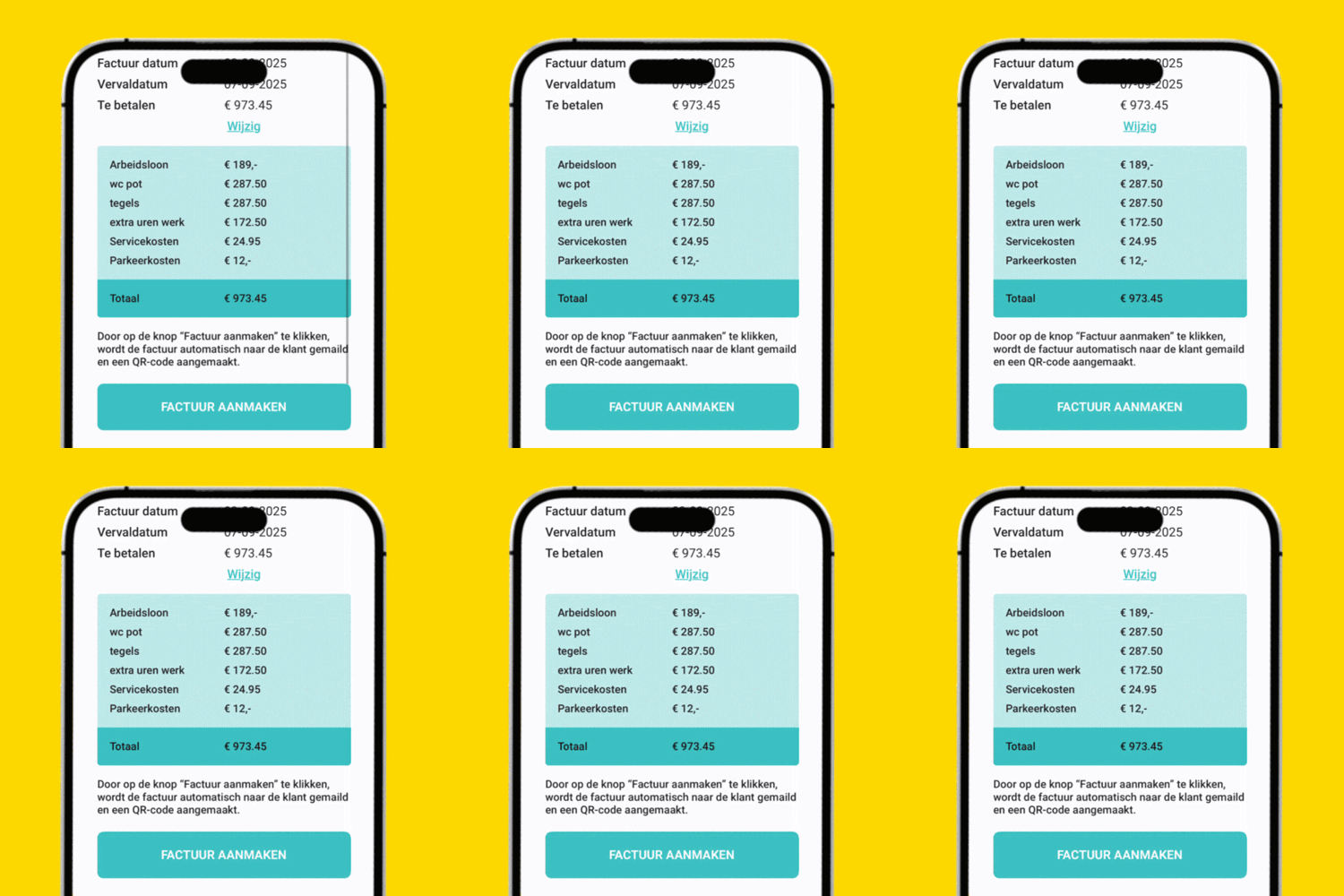
Make sure the price on the final invoice always matches the price you agreed upon with the customer. If anything changed during the job, include a short explanation in a message with the invoice.
This helps you appear professional and prevents surprises for the customer.